In this guide, we’ll show you how to add a Custom Pixel in Shopify so your store can track TikTok events from both the Pixel and the Events API.
Why this matters
If you do not add the Custom Pixel, the app will only send events via the Events API
If you add the Custom Pixel, TikTok events will be tracked from two sources:
TikTok Pixel (browser-side)
TikTok Events API (server-side)
This results in more complete and more accurate tracking, especially when browsers block cookies.
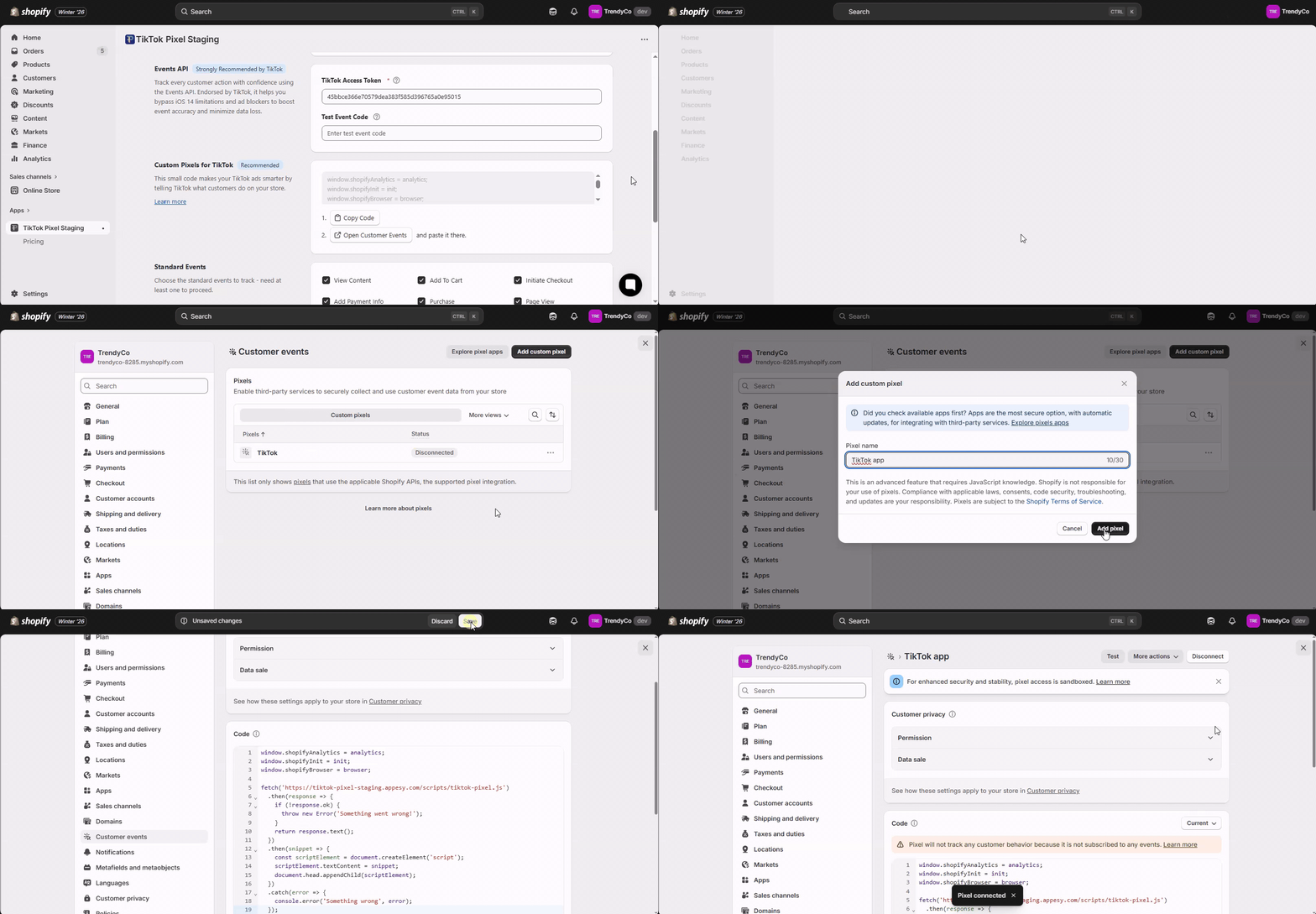
Inside the app settings, you’ll see a code block similar to the image below.
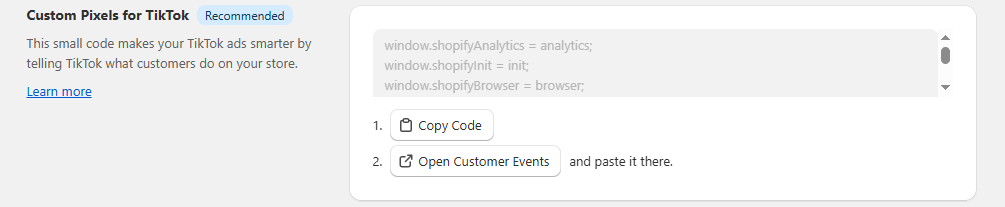
 What to do:
Click “Copy” to copy the pixel code
Click “Open Customer Events”
You’ll be redirected to the Customer Events page in Shopify
Or manually go to Shopify Admin → Settings → Customer Events
 The code is already prepared by the app. You do not need to modify or understand the code.

Once you’re on the Customer Events page:
Click “Add Custom Pixel”
Enter a name for your pixel
Paste the copied code into the editor
Click Save
After saving, Shopify will automatically activate the Custom Pixel.
Confirm Completion
Once the Custom Pixel is added, the app will track TikTok events from: TikTok Pixel and Events API
TikTok will receive data from both sources at the same time