Welcome aboard! 
This guide is designed to help you set up your TikTok Pixel & Events API quickly and correctly so that you can start tracking, optimizing ads, and improving campaign performance.
Before sending events to TikTok, you need to create or connect a Pixel.
Option 1: Use an existing Pixel
Go to TikTok Events Manager
Choose your Business Manager and select an existing Pixel
Option 2: Create a new Pixel
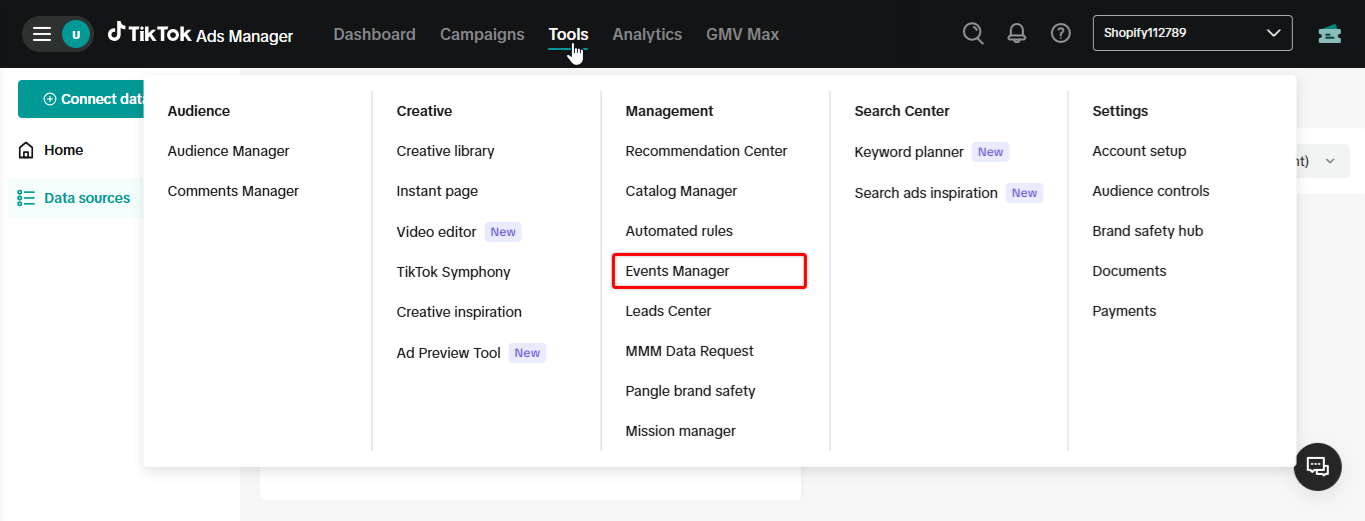
In your TikTok Ads Manager, click on Tools ➞ Events Manager
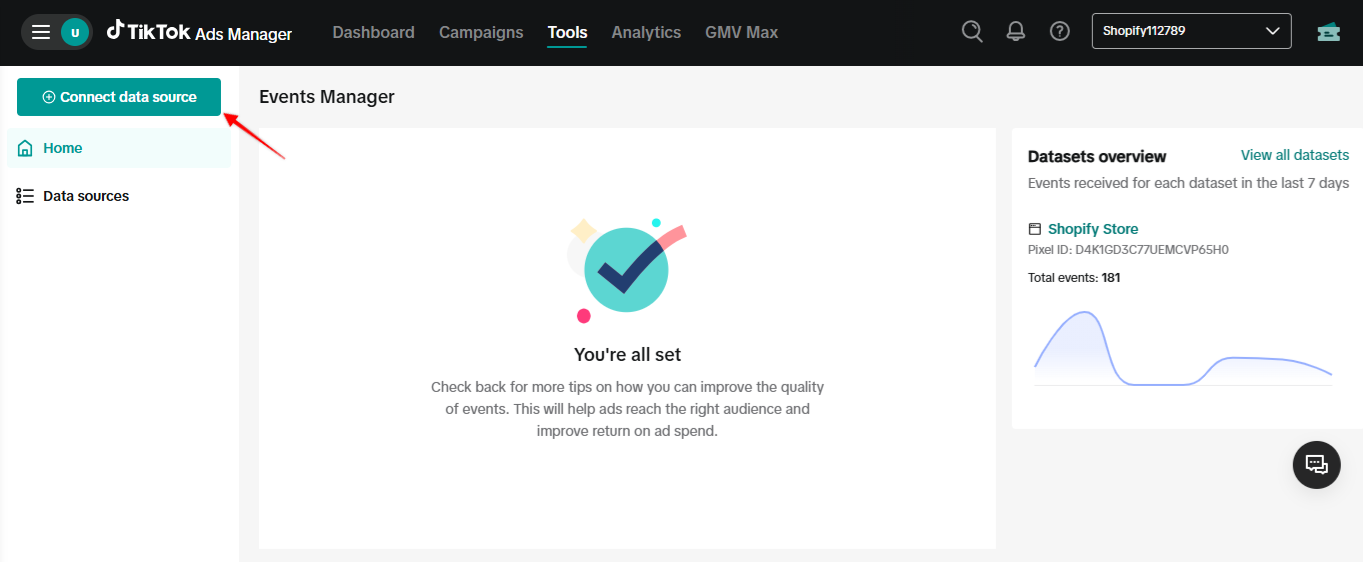
Click on Connect Data Source
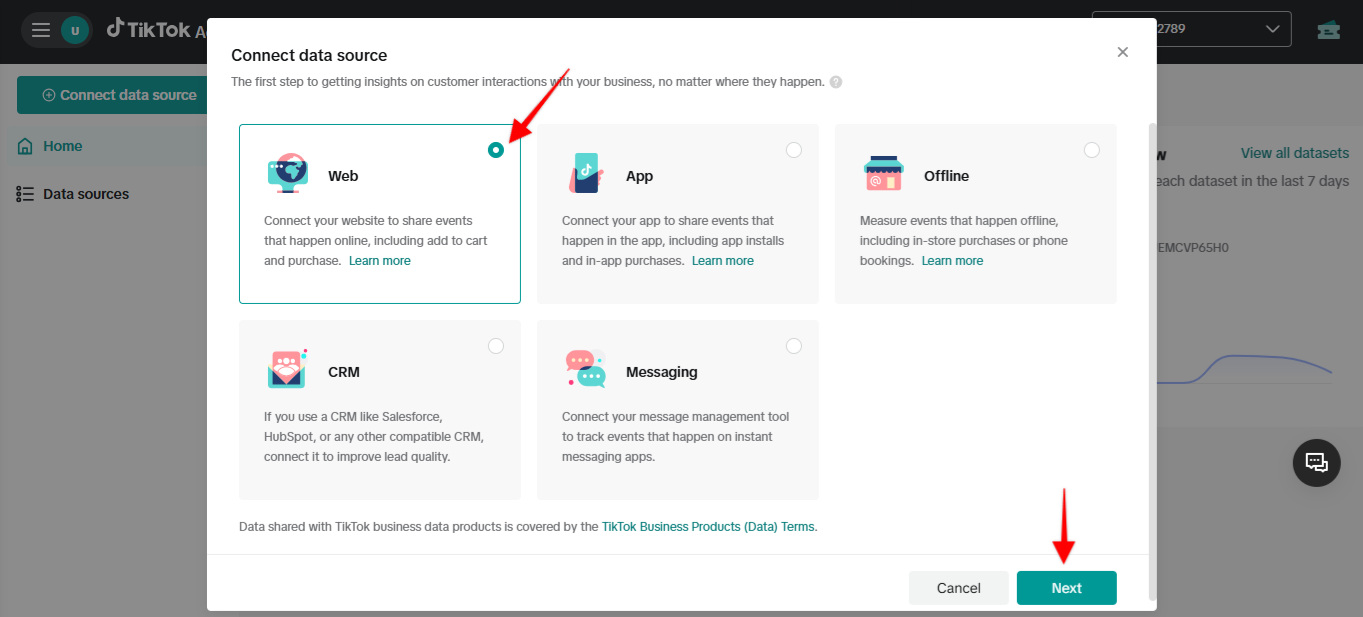
Ensure you select “Web” as the platform
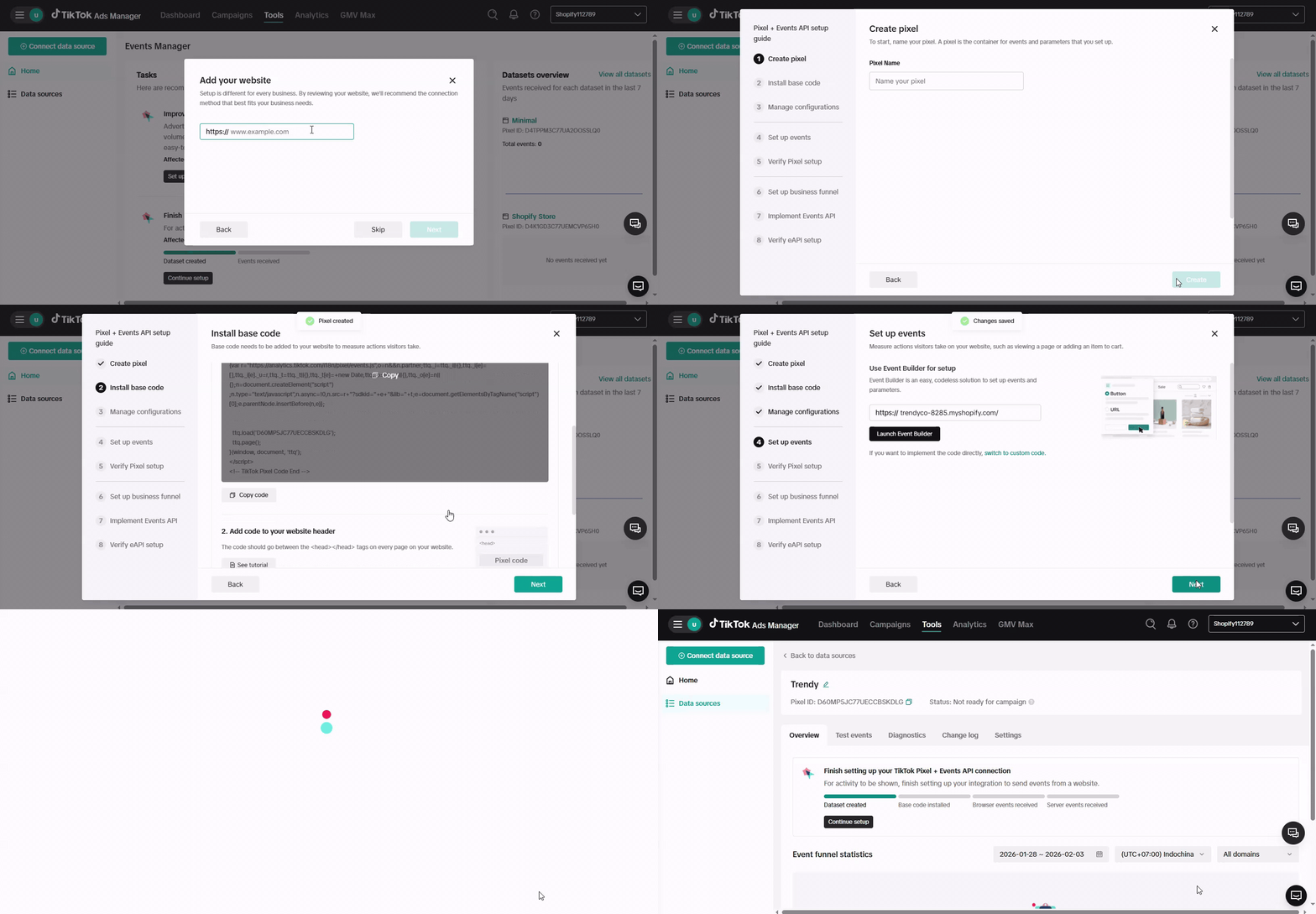
Add your website → Select Manual setup → Choose TikTok Pixel + Events API connection method. Enter your Pixel name and complete the remaining steps, then click Finish.
To activate tracking:
In your Shopify Admin, go to Online Store > Themes > Customize
Click on App Embeds (bottom left)
Toggle TikTok Pixel-Events API ON
Save your changes
This will allow the app to track Page view, Add to cart, Initiate checkout, and other key events.
Inside our app:
Pixel Setup
Go to Pixel & API Configuration > Create Pixel
Enter your Pixel Name and TikTok Pixel ID
Select the pages you want to track
Events API
Get your TikTok Access Token
In TikTok Events Manager, select your Pixel, then open the Settings tab
Scroll down to the Events API
In Set up direct integration, click Generate access token and copy the code shown
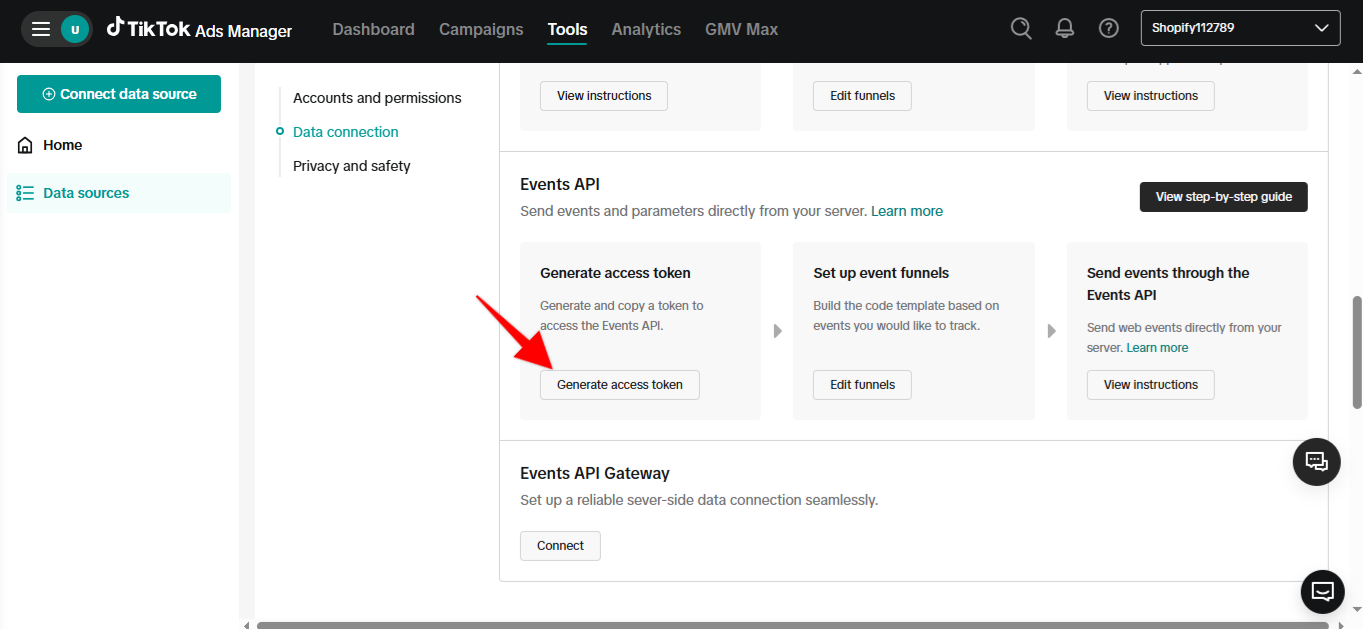
Enter TikTok Access Token and Test Event Code (Optional)
Standard Events
Select the events you want to track - At least one event must be selected to proceed.
Available tracking events:
Page view – When a visitor loads any page on your site
View content – When a visitor views a product detail page
Add to cart – When a customer adds a product to their cart
Initiate checkout – When a customer starts the checkout process
Add payment info – When a customer enters their payment information
Purchase – When a customer completes a purchase
Search – When a visitor uses the search function on your website

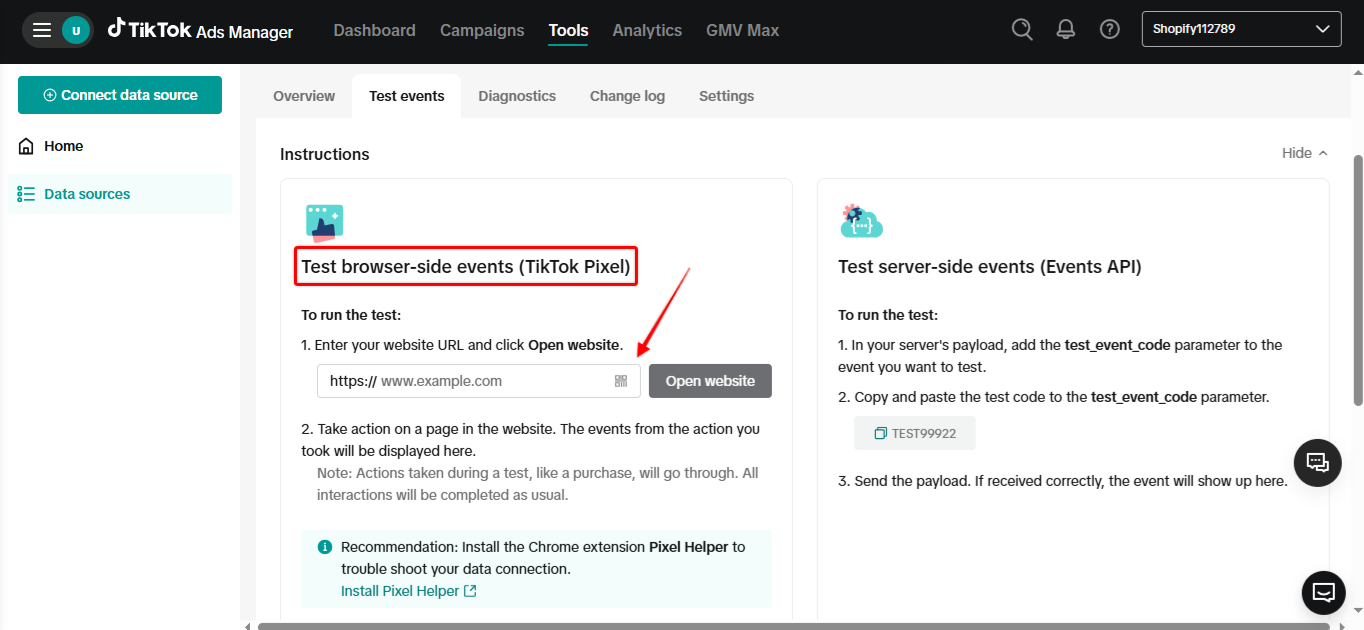
1. Test Browser Events (Pixel)
Make sure your TikTok Pixel is connected through the app. Then:
Go to TikTok Events Manager – Test Events tab
Enter your store URL in the test field and click Test events
On your store, perform actions such as: viewing a product page, adding a product to cart, initiating checkout, completing a purchase
Return to TikTok Events Manager to confirm that events like Page view, View content, Add to cart, Initiate checkout, and Purchase are appearing in real time
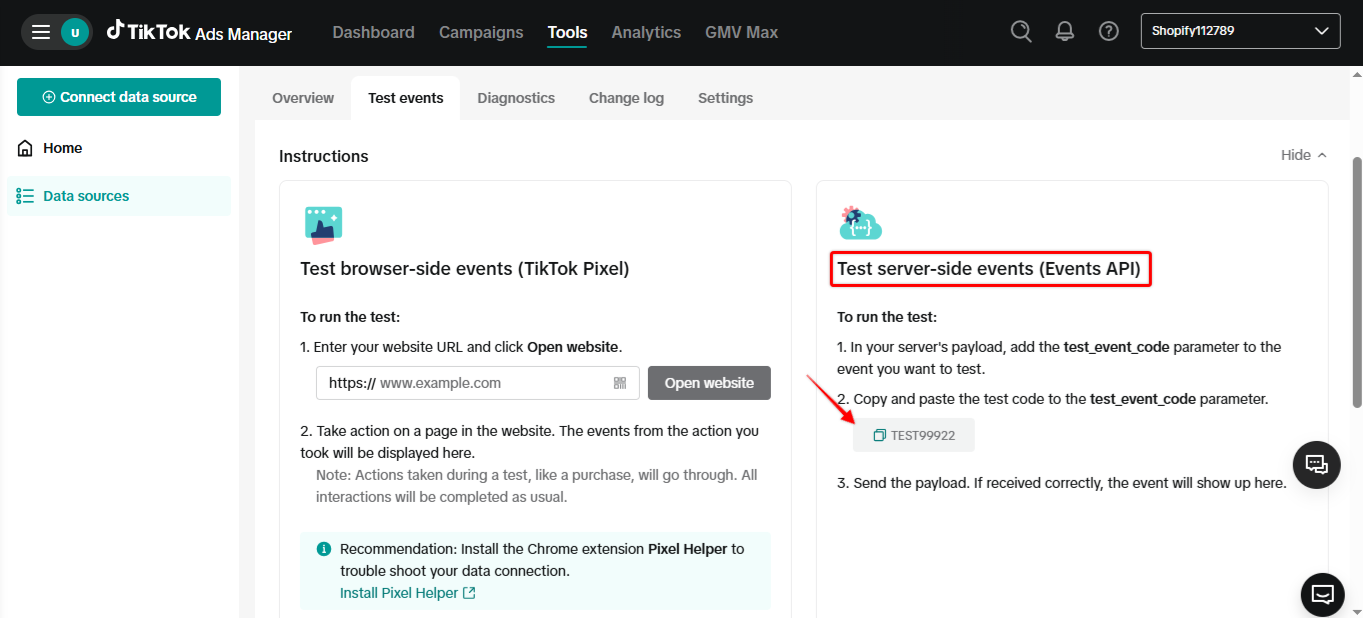
2. Test Server Events (Events API)
If you've enabled API , follow these steps to test:
In TikTok Events Manager, get your Test Event Code
Enter this code into the Test Event Code field in our app
Perform the same actions on your storefront
Server-side events will now show up in the Test Events tab, marked as coming from Server
3. Check Event Deduplication
When both Pixel (browser) and API (server) are sending the same events (like a purchase), TikTok will deduplicate them automatically, as long as the events share the same event_name and event_id.
Our app should automatically handle deduplication logic. In Events Manager, you may see both sources reported, with one flagged as deduplicated.