Testing your events is an essential step before fully implementing them in your live environment. The Test Event Code feature in Events Manager allows you to send events in a safe testing mode and verify that they’re being received correctly. In this guide, we’ll walk you through how to use a Test Event Code to send and validate your first test events.
Make sure your TikTok Pixel is connected through the app. Then:
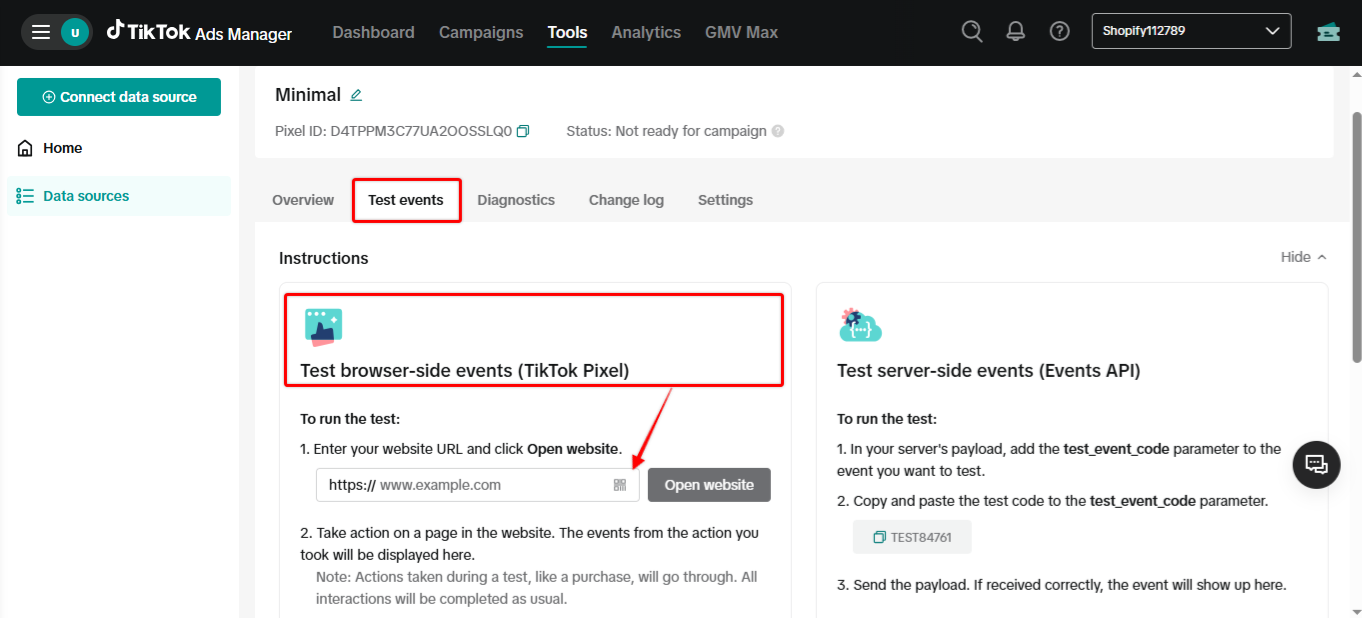
Go to TikTok Events Manager – Test Events tab
Enter your store URL in the test field and click Test events
On your store, perform actions such as: viewing a product page, adding a product to cart, initiating checkout, completing a purchase
Return to TikTok Events Manager to confirm that events like Page view, View content, Add to cart, Initiate checkout, and Purchase are appearing in real time
If you've enabled Events API, follow these steps to test:
In TikTok Events Manager, get your Test Event Code
Enter this code into the Test Event Code field in our app
Perform the same actions on your storefront
Server-side events will now show up in the Test Events tab, marked as coming from Server
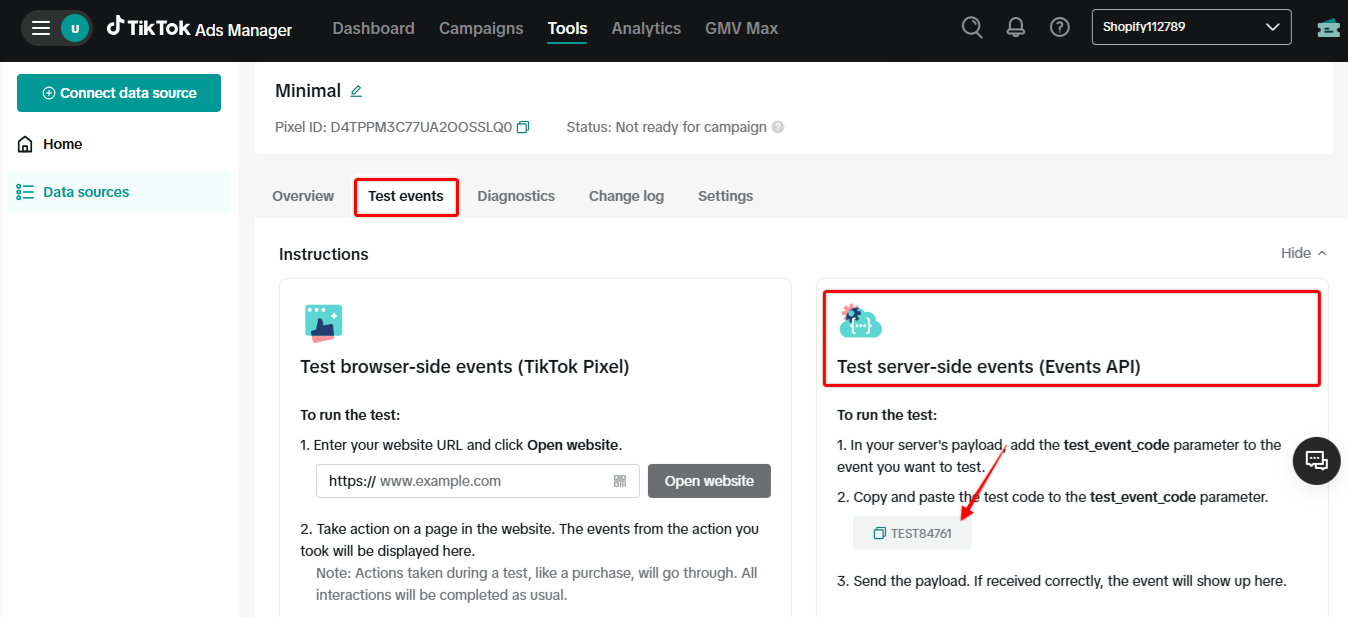
Test Event Code